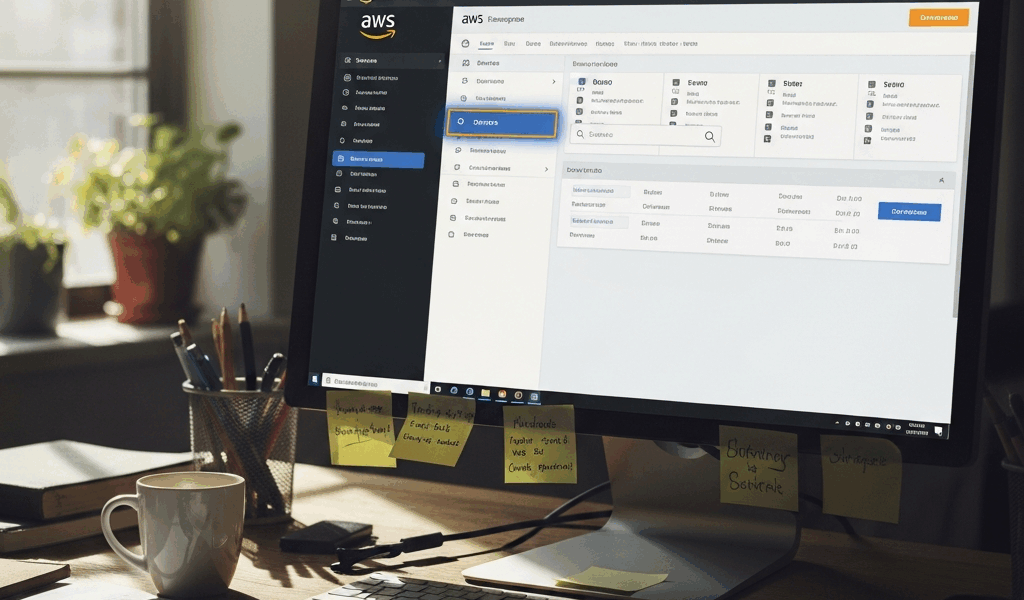
A Comprehensive Guide to the AWS Management Console
The AWS Management Console has gotten complicated — or maybe it was always complicated and we just didn’t notice when there were fewer services. Either way, this web-based interface is how most people interact with Amazon Web Services day-to-day, and understanding how to navigate it efficiently saves real time. As someone who’s spent countless hours clicking through its menus, I’ll walk you through what actually matters and what you can safely ignore until you need it.

Dashboard Overview
When you log in, the first thing you see is the console dashboard — and honestly, it’s both helpful and overwhelming. It shows a snapshot of your AWS environment with key metrics and quick access to services you’ve used recently. You can customize what appears here, and I’d recommend doing that early since the default layout tries to show you everything at once.
The homepage surfaces service health information, your recently visited services, and billing data. That billing widget in particular is worth keeping front and center. Nothing ruins your morning like discovering you left a beefy EC2 instance running all weekend. The Console Home is your gateway to the entire AWS ecosystem — think of it as the lobby of a building with 200+ rooms.
Service Navigation
The service navigation menu lives in the top left corner, and this is where the sheer scale of AWS hits you. Over 200 services, categorized by function:
- Compute: EC2, Lambda, Elastic Beanstalk — the stuff that actually runs your code.
- Storage: S3, EFS, Glacier — where your data lives (and sometimes where your budget disappears).
- Databases: RDS, DynamoDB, Redshift — pick the right one for your use case or pay for it later.
- Machine Learning: SageMaker, Rekognition, Comprehend — the AI services that keep expanding every re:Invent.
Clicking into any service takes you to its dedicated console with service-specific controls. Pro tip: pin your most-used services to the navigation bar. Searching through 200 services every time gets old fast.
Resource Management
Creating and managing resources through the console is straightforward once you get the rhythm. Whether you’re spinning up an EC2 instance or creating an S3 bucket, AWS provides step-by-step wizards that walk you through the process. These wizards are genuinely helpful for beginners, though experienced users often find them tediously thorough.
For EC2, you’ll configure instances by selecting AMIs (the operating system image), choosing instance types (how much CPU and memory), and setting network parameters. For S3, you create buckets, set permissions (get these right — misconfigured S3 permissions are responsible for a shocking number of data breaches), and configure lifecycle policies to manage costs. The console handles all of this through point-and-click interfaces that are far more approachable than writing CloudFormation templates from scratch.
Monitoring and Alerts
Monitoring your AWS resources isn’t optional — things break, costs spike, and performance degrades. The console integrates with CloudWatch, which is AWS’s monitoring backbone. You can track metrics, set alarms, and dig through logs all from one place.
CloudWatch dashboards show real-time data on resource usage, performance metrics, and operational health. You can build custom dashboards that surface exactly what you care about. I’d recommend setting up billing alarms before anything else — seriously, before you even launch your first instance. A CloudWatch alarm that emails you when costs exceed $50 has saved more people than any other AWS feature.
Access Control
Security in AWS revolves around IAM — Identity and Access Management — and getting it right is probably the most important thing you’ll do in the console. IAM controls who can do what across your entire AWS account.
You create users, groups, and roles, each with specific policies that define their permissions. The principle of least privilege applies here: give people access to only what they actually need. Multi-factor authentication should be non-negotiable for any account with real resources. And whatever you do, don’t use your root account for daily work. Create an admin user and lock the root credentials away.
Billing and Cost Management
Probably should have led with this section, honestly. AWS billing surprises are legendary in the tech world, and the billing dashboard is your defense against them. It shows current charges, lets you set budget alerts, and provides tools for analyzing cost trends.
Cost Explorer is genuinely useful for understanding where money goes. It visualizes spending patterns over time and helps identify optimization opportunities — like that development environment running 24/7 when your team only works 40 hours a week. Reserved Instances and Savings Plans can cut costs significantly for predictable workloads, and the console helps you model different commitment levels.
Support and Documentation
AWS documentation is extensive — sometimes overwhelmingly so. But the console provides direct access to support cases, troubleshooting guides, and service-specific documentation without leaving the interface. If you’re stuck, the docs are usually the fastest path to answers.
For urgent issues, AWS support tiers range from basic (free, community forums) through Enterprise (dedicated Technical Account Manager). The right tier depends on how critical your workloads are and how much downtime costs your business.
Configuration and Automation
The console is designed for ease of use, but it also connects to AWS’s automation tools — which is where things get powerful. CloudFormation, Elastic Beanstalk, and the AWS CLI are all accessible from within the console.
CloudFormation lets you define infrastructure as code using templates — describe what you want, and it builds it. This is how teams manage environments reproducibly rather than clicking through the console each time. Elastic Beanstalk abstracts away infrastructure for application deployment. The AWS CLI gives you command-line access for scripting repetitive tasks. Most teams start in the console and graduate to these automation tools as their infrastructure matures.
Cost Optimization Tools
Beyond the billing dashboard, AWS provides dedicated cost optimization features. Trusted Advisor acts like a continuous audit, flagging opportunities to reduce costs, improve performance, and close security gaps. Some recommendations are available on the free tier; others require a paid support plan.
Reserved Instances and Savings Plans deserve special attention for anyone running predictable workloads. The math is simple: commit to a certain usage level for 1-3 years and pay significantly less. The console helps you analyze your usage patterns and model different commitment scenarios before you lock anything in.
Data Migration Services
Moving data into AWS is one of those tasks that sounds simple and rarely is. The console integrates several migration services: AWS Migration Hub for tracking multi-service migrations, Database Migration Service (DMS) for moving databases with minimal downtime, and the Snow family (Snowball, Snowcone) for physically shipping large datasets when internet transfer isn’t practical.
Migration Hub is particularly helpful because it gives you a single dashboard for tracking migrations across multiple services. When you’re moving an entire infrastructure, having one place to check status beats logging into six different service consoles.
Networking and Content Delivery
Networking in AWS starts with VPC — Virtual Private Cloud — which creates isolated network environments within AWS. You control IP addressing, subnets, routing tables, and security groups. Getting the VPC architecture right early saves painful restructuring later.
CloudFront handles content delivery by caching content at edge locations worldwide, reducing latency for global users. Route 53 provides DNS services with health checking and traffic routing capabilities. These services work together to create network architectures that range from simple single-region setups to complex global deployments.
Development and Deployment
AWS offers a complete CI/CD pipeline through services accessible in the console. CodeCommit provides Git-based source control, CodeBuild handles compilation and testing, and CodeDeploy manages deployments to EC2, Lambda, or on-premises servers.
These services integrate with each other through CodePipeline, creating automated workflows from code commit to production deployment. Whether the integration is smooth enough to replace GitHub Actions or Jenkins depends on your team’s existing tooling — but having everything within the AWS ecosystem simplifies permissions and networking.
Compliance and Governance
For organizations in regulated industries, compliance tooling matters. AWS Config continuously monitors resource configurations and flags drift from defined policies. Audit Manager automates evidence collection for audits, which is a genuine time-saver for anyone who’s suffered through manual compliance documentation.
These tools don’t eliminate compliance work, but they reduce the manual overhead significantly. Config rules can automatically flag (and in some cases remediate) non-compliant resources before they become audit findings.
Serverless Management
Serverless architectures are increasingly popular for good reason — no servers to manage, automatic scaling, and pay-per-use pricing. The console provides management interfaces for Lambda (run code without servers), API Gateway (create and manage APIs), and Step Functions (coordinate multi-step workflows).
Lambda in particular has transformed how people think about cloud computing. Write a function, configure a trigger, and AWS handles everything else. The console’s Lambda editor even lets you write and test functions directly in the browser, which is useful for quick iterations on simple functions.
Analytics and Big Data
AWS’s analytics services cover the full spectrum from raw data processing to business intelligence. EMR runs big data frameworks like Hadoop and Spark on managed clusters. Redshift provides data warehousing with fast query performance. QuickSight delivers visualization and business intelligence without requiring separate BI software.
The console ties these together, letting you manage data pipelines from ingestion through analysis and visualization. For teams already invested in the AWS ecosystem, using native analytics services simplifies the data architecture considerably.
Machine Learning and AI
AWS’s ML services range from fully managed training environments to pre-built AI capabilities. SageMaker covers the complete machine learning workflow: data preparation, model training, and deployment. Rekognition handles image and video analysis out of the box. Comprehend provides natural language processing for text analysis.
The console makes these services accessible to teams without deep ML expertise — SageMaker’s point-and-click training interface lets you build models without writing training code. Whether the results match what a dedicated ML team would produce is another question, but for getting started, the barrier to entry is remarkably low.
Edge Computing
Edge computing brings AWS capabilities closer to where data is generated. Greengrass extends AWS to IoT devices, enabling local processing and machine learning inference. Snowcone — the smallest member of the Snow family — provides edge computing and data transfer capabilities for locations with limited connectivity.
These services matter for use cases where latency or bandwidth constraints prevent sending everything to the cloud. Manufacturing floors, remote locations, and real-time processing applications all benefit from edge computing capabilities.
Marketplace
The AWS Marketplace, accessible through the console, offers third-party software that runs on AWS infrastructure. You can find, test, and deploy solutions across categories like security, networking, business applications, and databases.
The marketplace simplifies procurement by consolidating billing through your existing AWS account. Instead of separate vendor contracts, third-party software costs appear on your regular AWS bill. For some organizations, this procurement simplification is as valuable as the software itself.
The AWS Management Console keeps evolving as AWS adds services and features, but the fundamentals remain stable. Learn the navigation patterns, set up your billing alerts, configure IAM properly, and you’ll have a solid foundation for managing cloud infrastructure regardless of how many new services appear at the next re:Invent.



Stay in the loop
Get the latest web sme updates delivered to your inbox.