SMTP Server Explained
SMTP is one of those protocols that most people use hundreds of times a day without ever thinking about it. Every email you send travels through at least one SMTP server, and understanding how the process works helps enormously when things go wrong — which they inevitably do. Let me walk through how SMTP servers actually function, the commands they speak, and what to check when your email stops working.
What is an SMTP Server?
An SMTP server sends, receives, and relays outgoing email. That’s it at the highest level. When you hit send on an email, your mail client connects to an SMTP server, which then figures out where the message needs to go and delivers it. The “Simple” in Simple Mail Transfer Protocol was accurate when the protocol was designed in 1982 — the conversation between servers is genuinely straightforward, even if the infrastructure around it has gotten considerably more complex.
How Does an SMTP Server Work?
The flow breaks down into discrete steps that are worth understanding:
- You compose an email in your mail client — Outlook, Gmail, Thunderbird, whatever.
- Your client connects to its configured SMTP server (usually on port 587 with authentication).
- The SMTP server accepts your message and checks the recipient’s domain.
- It does a DNS lookup for the recipient’s MX (Mail Exchange) record to find their mail server.
- Your SMTP server opens a connection to the recipient’s server and transfers the message.
- The recipient’s server accepts the message and delivers it to their mailbox.
Each server along the way logs the transaction — who sent what, when, and whether delivery succeeded. These logs are your lifeline when troubleshooting delivery problems.
SMTP Commands and Replies
SMTP servers communicate through plain-text commands and numeric reply codes. Knowing these is surprisingly useful for debugging:
- HELO/EHLO: The opening handshake. Your server identifies itself to the remote server. EHLO is the extended version that advertises supported features like authentication and TLS.
- MAIL FROM: Declares the sender’s address — the envelope sender, which can differ from what you see in the “From” header.
- RCPT TO: Specifies each recipient. Multiple RCPT TO commands for multiple recipients.
- DATA: Signals that the email body is coming next. Everything after this until a lone period on a line is message content.
- QUIT: Closes the connection cleanly.
Reply codes tell you what happened:
- 220: Server ready and willing to talk.
- 250: Your request was completed successfully.
- 354: Go ahead and send the email body.
- 421: Server is temporarily unavailable — try again later.
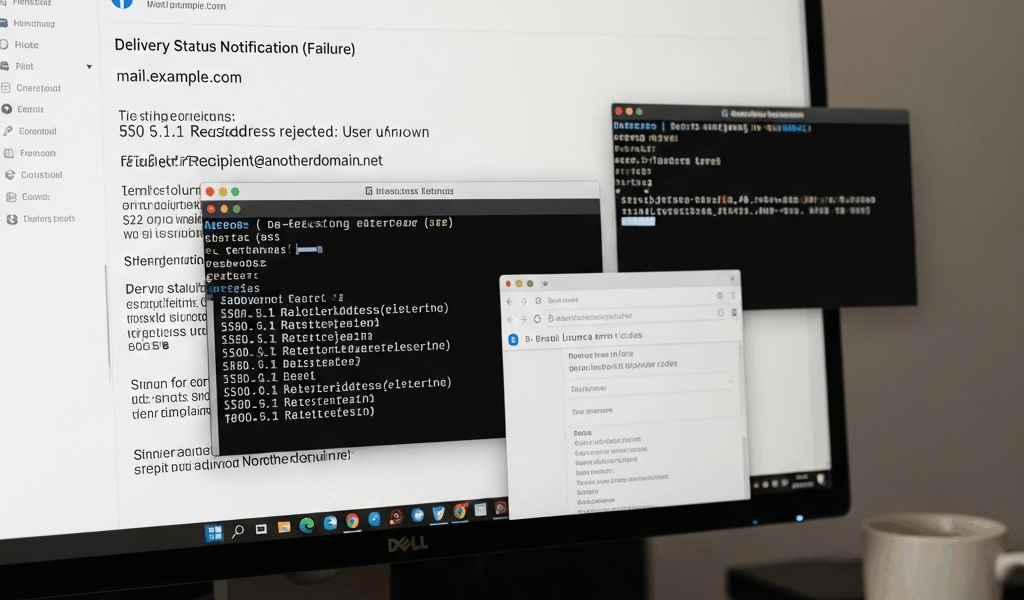
- 550: Mailbox doesn’t exist or is unavailable. Check the address.
SMTP Relay
SMTP relay is the process of one mail server forwarding a message through another. In practice, your email often passes through multiple servers on its way to the recipient. Each server takes responsibility for the message until it successfully hands it off to the next hop. Businesses commonly use dedicated relay services to send high volumes of email through servers with established sender reputations, which significantly improves deliverability compared to sending directly from a new or unknown server.
Securing SMTP Servers
An unsecured SMTP server is essentially a spam cannon waiting to happen. Unauthorized access leads to your server being used to send millions of spam messages, which gets your IP blacklisted across the internet. Here’s the minimum security baseline:
- Authentication: Require users to prove their identity before sending. No exceptions, no “trusted IPs” that you’ll forget to update when addresses change.
- Encryption: STARTTLS converts the plain-text SMTP connection to encrypted TLS. This protects email content during transit between servers.
- Access control: Restrict which IP addresses can send through your server. Defense in depth — even with authentication, limiting network access reduces your attack surface.
- Spam filters: Both inbound (protecting your users from spam) and outbound (preventing compromised accounts from sending spam through your server).
Common SMTP Errors and Troubleshooting
When email breaks, the error codes usually point you in the right direction:
- 550 (Mailbox Unavailable): The recipient address doesn’t exist or has been disabled. Double-check the address and try again. If it worked yesterday, the account may have been closed.
- 421 (Service Not Available): Temporary server issue on the remote end. Your server should automatically retry — if it doesn’t, wait and resend manually.
- 451 (Local Error): Something went wrong on your own server. Check your logs for specifics — disk full, database errors, and configuration problems are common culprits.
- 553 (Mailbox Name Not Allowed): The sender address format is rejected. Usually a misconfiguration in your mail client or a domain that hasn’t been properly configured for sending.
Regular monitoring catches most issues before users report them. Set up alerts for delivery failure rates and queue backlogs.
Configuring SMTP Servers
DNS Setup

DNS configuration is where most mail server setups fail. Your MX record must point to the correct server. Your SPF record must list all IPs authorized to send for your domain. Your DKIM keys must be published in DNS and match what your server signs with. Get any of these wrong and your mail either doesn’t arrive or lands in spam folders.
Server Settings
Key settings to configure based on your environment and policies:
- Authentication requirements — what methods to accept (PLAIN, LOGIN, CRAM-MD5)
- Maximum message size — balance user needs against storage and bandwidth constraints
- Rate limits — emails per hour/day per user, to contain damage from compromised accounts
- Logging verbosity — detailed enough to troubleshoot but not so verbose that logs fill your disk
IP Restrictions
Define which IP addresses or ranges can submit mail through your server. This is separate from authentication — even authenticated users should only connect from expected network ranges. When something gets compromised, IP restrictions limit the blast radius.
SMTP Alternatives
SMTP handles sending. Other protocols handle other parts of the email ecosystem:
- IMAP: Retrieves and manages email on the server. Syncs across multiple devices — the modern standard for email access.
- POP3: Downloads email to a single device and typically removes it from the server. Simpler than IMAP but doesn’t work well with multiple devices.
- Webmail: Browser-based email access that uses IMAP or POP3 behind the scenes. Gmail and Outlook.com are webmail interfaces backed by SMTP for sending.
These aren’t alternatives to SMTP — they’re complementary protocols that handle different parts of the email workflow. SMTP sends; IMAP/POP3 retrieves.
SMTP in Modern Applications
SMTP underpins far more than personal email. Modern applications use it extensively:
- Email automation: Time-sensitive notifications, alerts, and updates triggered by application events.
- Transactional email: Order confirmations, password resets, shipping notifications — every e-commerce site depends on SMTP for these.
- Customer support: Ticket creation and updates flowing between support platforms and customer inboxes.
Integration with CRM systems, marketing platforms, and monitoring tools means SMTP touches almost every part of modern business operations. Services like SendGrid, Mailgun, and Amazon SES provide the SMTP infrastructure so businesses don’t have to run their own servers.
Future of SMTP
Despite being over 40 years old, SMTP isn’t going anywhere. The protocol continues evolving — UTF8 support for international email addresses, improved authentication mechanisms like DMARC and BIMI, and tighter encryption requirements. The core design is sound; the improvements focus on security and capability rather than replacing what works. As long as email exists, SMTP will be the protocol that moves it.




Stay in the loop
Get the latest web sme updates delivered to your inbox.