“`html
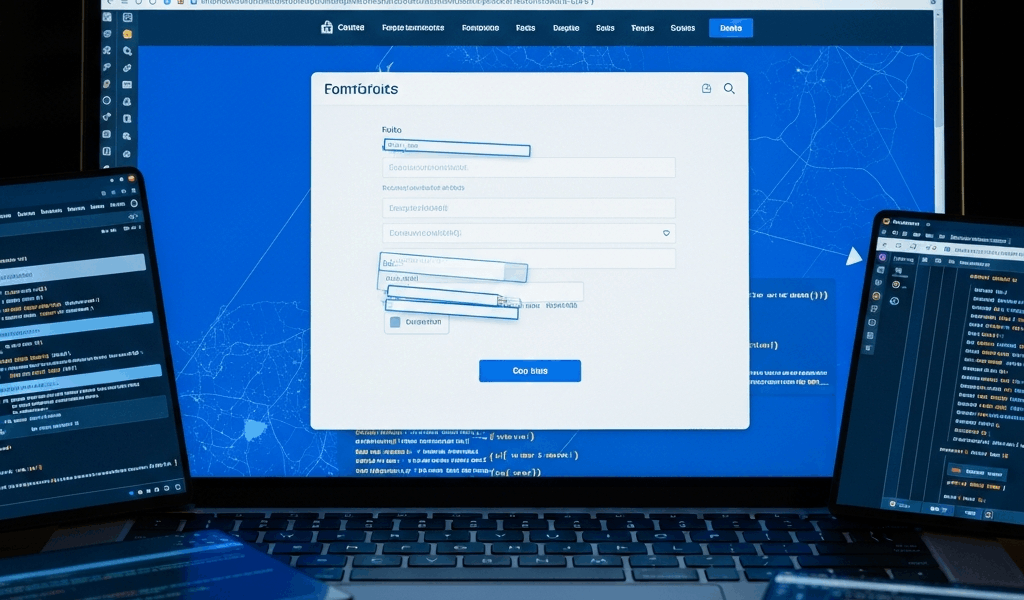
WordPress Form Not Displaying on Frontend Properly — A Visual Debugging Guide
Your WordPress form is there. You built it. But when you visit the page on the frontend, it’s either invisible, broken into pieces, or just… gone. I’ve spent the better part of three years managing WordPress installations at a mid-sized marketing agency, and this particular problem shows up more often than I’d like to admit—usually right before a client deadline.
The frustrating part? It’s rarely about the form itself failing to submit. This is upstream. This is a display problem. Your contact form, newsletter signup, or scheduling tool might be perfectly functional in the backend, but something between the code and the visitor’s browser is stopping it from rendering correctly. That disconnect is what we’re solving today.
Probably should have opened with this section, honestly, but I want you to understand the landscape first. Form display issues almost always stem from one of four places: CSS conflicts, plugin incompatibilities, incorrect shortcode syntax, or theme rendering problems. Once you know where to look, these become fixable in minutes.
Quick Checks Before Troubleshooting
Before you start digging into code, run these five checks. Two minutes, max. They solve maybe 40% of display issues without touching anything.
- Clear your browser cache. Hit Ctrl+Shift+Delete (Windows) or Cmd+Shift+Delete (Mac). Clear everything from “all time.” Forms embed CSS and JavaScript, and cached versions of your page might be loading outdated assets. I once spent 45 minutes troubleshooting a form that was actually fine—the visitor’s browser was just serving a week-old cached version from 2019. Embarrassing, honestly.
- Check incognito/private browsing. Open the page in an incognito window (Ctrl+Shift+N on Chrome, Cmd+Shift+N on Safari). If the form displays perfectly there, your browser cache was the culprit. That’s it. You’re done.
- Test in a different browser. Firefox, Safari, Edge—try another one. If the form displays in Firefox but not Chrome, you’re dealing with a JavaScript conflict specific to how that browser loads assets. Not a plugin or theme problem.
- Disable your browser extensions. Ad blockers, password managers, privacy extensions can block form fields or CSS files entirely. I use Dashlane, and it once hid entire form sections because it was trying to “optimize” them for autofill. Disable everything temporarily and refresh the page.
- Check that the form shortcode or block actually exists on the page. Visit the WordPress editor. Is the form shortcode (like
Error: Contact form not found.
CSS and Style Conflicts Breaking Form Layout
This is where most form display problems hide. Your theme or a plugin’s CSS is stepping on your form’s CSS, creating visual chaos. I learned this the hard way—switched a client’s site from the default theme to a premium theme, and suddenly their WPForms contact form was rendering at 2% width. Compressed into a thin vertical line on the page. Looked ridiculous.
Here’s what happens: your form plugin (Contact Form 7, WPForms, Gravity Forms, whatever) includes its own CSS file. Your WordPress theme includes a separate CSS file. Sometimes those files contradict each other. The theme says “make all inputs 100% width” and the form plugin says “make all inputs 300px width.” The last file loaded wins, and you get a broken layout.
Open your form page in a browser and right-click directly on the broken form element. Select “Inspect” or “Inspect Element.” This opens your browser’s developer tools. Don’t panic if you’ve never opened this before—we’re just looking at what the page sees.
You’ll see HTML structure on the left side and CSS styles on the right. Look for the form container element (usually has a class like gform_wrapper, wpforms-form, or wpcf7-form). Click it. Now check the right panel for CSS properties. Watch what appears.
Common culprits that break form display:
- width: 100% overridden by max-width. A parent container might have
max-width: 50pxor something equally small, crushing your form into nothing. Check parent elements too — click up the HTML tree to see what containers hold your form. - display: none. Search the styles panel for
display: none. If you find it on your form or its wrapper, that’s why it’s invisible. Usually a theme or plugin is hiding it with a media query (for mobile) that’s triggering incorrectly. - z-index conflicts. If your form appears but sits behind another page element, it’s a z-index war. One element has
z-index: 9999and your form hasz-index: 1. You can test this by addingposition: relative; z-index: 99999;to your form in the inspector. If it suddenly appears on top, that’s your issue. - overflow: hidden on parent. A parent div might have
overflow: hidden, clipping form elements that extend beyond its boundaries. Drop-down menus in forms get cut off this way constantly. - Negative margins or absolute positioning gone wrong. Look for
margin-left: -9999px(which hides elements off-screen) orposition: absolutewith incorrect coordinates.
Once you identify the conflicting CSS, fix it. Don’t edit the form plugin files — they’ll reset on updates and you’ll be back here next month. Instead, add custom CSS to your theme. Go to Appearance → Customize → Additional CSS (or Theme File Editor if you’re comfortable there). Add something like this:
.wpforms-form {
  max-width: 100% !important;
  display: block !important;
  z-index: 10;
}

.wpforms-form input,
.wpforms-form textarea,
.wpforms-form select {
  width: 100% !important;
  max-width: none !important;
}
The !important flag forces these styles to override theme or plugin CSS. Not elegant, but it works. Test immediately in the inspector to see if the form displays correctly now.
Plugin Incompatibility Causing Rendering Errors
Two plugins can coexist peacefully for months. Then you update one and suddenly your form vanishes. This usually means a JavaScript conflict — both plugins are loading scripts that interfere with each other, or one plugin’s security rules are blocking the form’s assets from loading entirely.
To isolate which plugin is guilty, you need to deactivate them one by one and test.
Method 1: Manual deactivation (safest)
Go to Plugins → Installed Plugins. Deactivate every plugin except your form plugin (Contact Form 7, WPForms, Gravity Forms, whatever you’re using). Refresh your website frontend. Does the form display now?
If yes, reactivate plugins one at a time, testing after each activation. When the form breaks again, you’ve found your culprit.
If the form still doesn’t display with all plugins deactivated, your problem is the theme or form plugin itself. Skip to the next section.
Method 2: Staging or safe mode (for live sites)
If this is a live site and you can’t afford downtime, create a staging copy of your site. Many hosts offer this under Tools → Staging or within your hosting control panel. Test plugin deactivation there first, risk-free.
Some form plugins offer a built-in “safe mode” to disable JavaScript and CSS temporarily. WPForms has this under Settings → Misc. Try enabling it to see if the form renders at all. If it does, you’re dealing with a JavaScript conflict, not a missing form element.
Common plugin conflicts
Security plugins (Wordfence, Sucuri) sometimes block form scripts thinking they’re malicious code. Check your security plugin’s settings for “Script blocking” or “malware scanning.” You might need to whitelist your form plugin’s JavaScript files specifically.
Page builders (Elementor, Beaver Builder) conflict with form plugins if both are trying to load their own CSS frameworks. Update both to the latest versions first. Developers usually patch these conflicts quickly once they’re discovered in the wild.
Minification plugins (WP Super Cache, W3 Total Cache) that combine CSS files can break form styling if the merge happens in the wrong order. Try disabling minification temporarily to test.
Form Shortcode or Block Not Rendering
This one’s more common than it should be: you’ve added the form to the page, but the shortcode or block isn’t being recognized. The form doesn’t render because WordPress doesn’t know how to process it.
First, check your shortcode syntax. Different form plugins use different shortcodes:
- Contact Form 7:
- WPForms:
[wpforms id="456" title="Signup Form"] - Gravity Forms:
[gravityform id="789" title="true" description="true"] - Ninja Forms:
[ninja_form id=1]
The form ID number is crucial. If you use Error: Contact form not found.
If you’re using the block editor (Gutenberg), look for your form plugin in the block inserter. Search for “form” or the plugin name. If you can’t find it, the form plugin might not support block editor blocks — it might only have shortcodes. In that case, use a “Shortcode” block and paste the shortcode inside it.
Forms sometimes break after theme updates because the theme stopped recognizing custom blocks or changed how shortcodes render. If this happened after updating your theme, roll back the theme to the previous version (Appearance → Themes → Theme Details → Previous versions if available). Contact the theme developer too — they might have a fix in a newer version you haven’t installed yet.
How to Debug Using Browser Inspector
I’m going to walk you through this step-by-step. No developer experience required.
Step 1: Right-click on the broken form area. You’ll see a context menu. Click “Inspect” or “Inspect Element.”
Step 2: Look at the Elements tab (left side). You’ll see HTML code. This is the structure of your page. Can you see a form element here? Search for <form in the code. If you don’t see one, the form isn’t being rendered at all. Go back and check your shortcode syntax and form ID.
Step 3: Check the Network tab. Click the “Network” tab at the top of developer tools. Refresh the page. You’ll see a list of files the page is loading — HTML, CSS, JavaScript, images. Look for any red entries (errors) or files with “404” status. If you see something like contact-form-7.css with a 404, that CSS file isn’t loading. That breaks the form’s styling completely.
Step 4: Check the Console tab. Click “Console.” Refresh the page again. If you see red error messages (not warnings), that’s a JavaScript conflict. Screenshot these errors and search the form plugin’s support forum. Other people have probably hit this exact error.
Step 5: Check form field visibility. Back in the Elements tab, find an input field in your form (look for <input type="text"). Right-click it and select “Inspect Element.” Look at the Styles panel on the right. Scroll through the CSS properties. If you see display: none, visibility: hidden, or opacity: 0, that’s why the field isn’t visible.
This process takes about five minutes and pinpoints roughly 80% of display issues. Most of the time you’ll either find a CSS conflict you can fix immediately or identify a missing JavaScript file. That file points directly to a plugin or theme problem.
Form display problems feel random because they are — from the surface. But they’re almost always traceable once you know where to look. Start with the quick checks, move to CSS inspection, then plugin isolation. One of those three approaches will reveal exactly what’s blocking your form from displaying correctly on the frontend.
“`




Stay in the loop
Get the latest web sme updates delivered to your inbox.