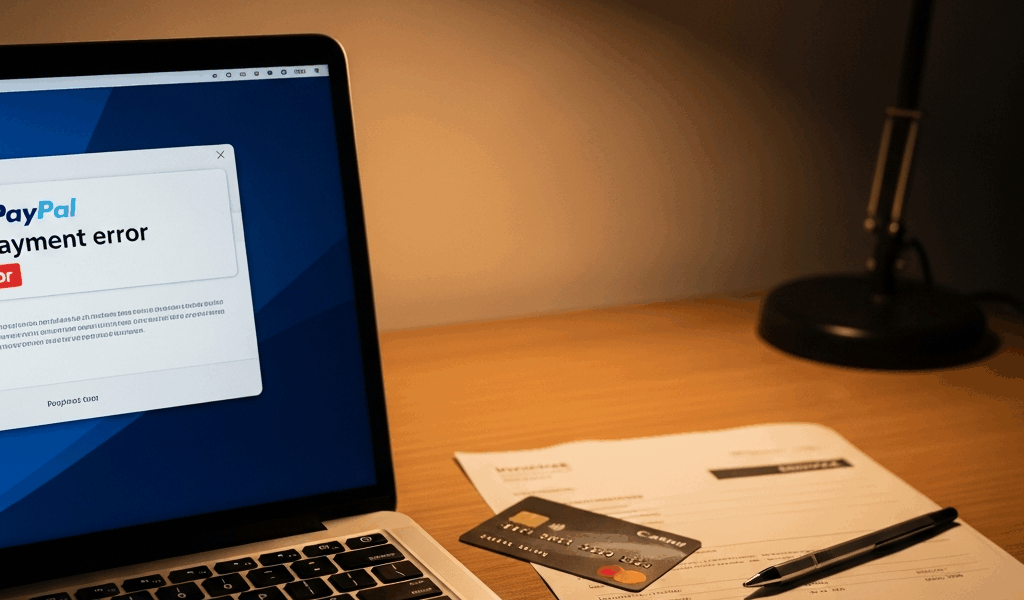
The Most Common Reasons PayPal Payments Fail
PayPal troubleshooting has gotten complicated with all the generic “clear your cache” advice flying around. Most of it assumes you’re Venmo-ing your roommate for pizza. It doesn’t touch the real stuff — the holds, the API mismatches, the sandbox toggle you forgot about for three months.
As someone who ran a WooCommerce store for three years, I learned everything there is to know about PayPal failures the hard way. Today, I will share it all with you.
The first time a payment got held on my account, I genuinely thought WooCommerce was broken. Spent two hours reinstalling plugins. It was a 21-day hold. A feature. Working as intended. That cost me a Tuesday I’ll never get back.
Here’s what most troubleshooting articles skip: small business owners hit completely different problems than personal users. Payment holds on new accounts. API credentials pulled from the wrong PayPal account type. Buyer-side card declines that show up looking like your checkout is broken. Currency mismatches sitting quietly in your settings for months.
This isn’t generic troubleshooting. These are the five root causes behind nearly every failed PayPal transaction in a small business context:
- Your account is new or flagged, and funds are on hold
- The customer’s card or bank is declining the payment
- Your website isn’t connected to PayPal correctly
- Currency or amount mismatches between checkout and gateway settings
- Your PayPal business account isn’t fully verified
So, without further ado, let’s dive in.
Your Account Is New or Got Flagged for a Hold
Probably should have opened with this section, honestly. It’s the reason half my early customer emails read like accusatory Reddit posts about scam stores.
PayPal holds money on new business accounts — 21 days by default. You process a sale, the dashboard says “Completed,” and the money sits in limbo for three weeks. The buyer gets nervous. Some open disputes. You stress-refresh your account balance at midnight.
But what is a payment hold? In essence, it’s PayPal protecting buyers from unverified sellers. But it’s much more than that — it’s also a trust metric that changes based on your behavior, your tracking uploads, and your account history. You can actively shorten it.
Here’s how to find it: Log into your PayPal business account, go to Wallet, then Recent Transactions. Look for a payment marked “On Hold” with a clock icon. Click into it. PayPal shows you the exact release date — usually 21 days from transaction date, sometimes longer if risk flags triggered.
You can speed this up. Seriously.
Add tracking information within 48 hours of each sale. Go to Resolution Center, find the transaction, upload carrier tracking. PayPal releases 1% of held funds per order you do this for. Ten orders, 10% unlocked. Slow, but real progress.
Ask buyers for reviews. Five-star feedback tells PayPal you’re legitimate. One solid review can shave a few days off a hold — I’ve seen it happen with USPS Priority shipments where the tracking updated fast and the review came in same week.
Verify your bank account under Account Settings > Bank Accounts. Confirmed accounts get faster releases — sometimes 7 days instead of 21. Don’t make my mistake of skipping this step during setup because it felt optional.
If your account got flagged after months of normal activity, check your Notifications tab immediately. PayPal usually asks for business documents — articles of incorporation, a utility bill with your business address, tax ID. Upload fast. Delays reset the hold timer.
The Customer’s Payment Is Being Declined
A buyer hits checkout. You get a “Transaction Declined” notification. You assume your PayPal integration broke. It didn’t — their bank blocked the charge.
Here’s what makes this so frustrating: you see a generic error. They see a generic error. PayPal doesn’t tell either of you that their card expired in March or that their bank flagged an out-of-state vendor. The buyer bounces. You spend an hour in your plugin settings looking for a problem that isn’t there.
Expired cards are the biggest culprit. A customer saved their Visa to PayPal in 2022. That card expired. PayPal tries to charge it. Bank rejects it. Done. That’s your lost sale.
Fraud blocks are second. A buyer’s bank sees a purchase from an unfamiliar vendor — different state, different category — and locks it. The customer gets no notification they’d expect. They just think your site is broken, close the tab, and order from someone else. That’s what makes this failure mode so expensive for us small business owners.
The fix is straightforward: enable guest checkout and direct card entry in your PayPal settings so buyers aren’t stuck using a saved — potentially expired — PayPal wallet.
In WooCommerce: go to WooCommerce > Settings > Payments > PayPal. Find “Guest Checkout” or “Credit Card Payments.” Toggle it on. Buyers can now enter a fresh card directly without logging into PayPal.
In Shopify: go to Settings > Payment Methods > PayPal. Under “PayPal Wallet,” enable “Debit and credit card payments.” Shopify prompts buyers to add a card if their saved wallet fails.
Also — send a follow-up email when a payment fails. Within two hours. Include a direct payment link using a backup processor — Stripe, Square, Apple Pay. Sometimes a second option is all it takes.
Your PayPal Is Not Connected Properly to Your Website
Frustrated by recurring gateway timeouts, a WooCommerce shop owner I know spent three weeks troubleshooting her integration using a personal PayPal account’s API key — a Sunday afternoon decision she’d made during initial setup without reading the documentation.
Most integration failures trace back to three mistakes. Every time.
- Using personal PayPal credentials instead of business account API keys
- Leaving sandbox mode enabled after launch
- Mismatched currency settings between PayPal and your store
Mistake One: Wrong Account Type
Personal PayPal accounts can’t handle business payment volume. The integration looks fine at setup. Transactions go through. Then you hit roughly $20,000 in monthly volume and PayPal flags it — payments stop mid-season, mid-campaign, mid-sale. Terrible timing, always.
Upgrade to a PayPal Business account if you haven’t. Takes five minutes at paypal.com. Then pull your API credentials from Account Settings > API Access — use the REST API credentials or API signature, not your email login. Paste those into WooCommerce or Shopify. That’s it.
Mistake Two: Sandbox Mode Left On
You test your store using PayPal’s sandbox environment — fake transactions, fake money, working replica of the real system. When you go live, you’re supposed to flip the toggle to Production. Sometimes that doesn’t happen. Your store is live. Real customers are checking out. Their payments route to a test server. Money never moves. Orders fail silently.
I’m apparently bad at reading my own settings because this bit me during a product launch, and the PayPal WooCommerce plugin works fine once toggled correctly while sandbox mode never surfaces an obvious error message.
Check your PayPal plugin settings right now. Look for “Sandbox Mode” or “Test Mode.” If it’s on, turn it off. Run a real $0.50 transaction from your own card to confirm everything’s live.
Mistake Three: Currency Mismatch
Your Shopify store is set to USD. Your PayPal account is set to EUR. Customer checks out in USD. PayPal tries to process in EUR. Amounts don’t align. Payment fails. This new kind of mismatch took off as more stores went global and eventually evolved into one of the most common silent killers PayPal merchants know and dread today.
In Shopify: Settings > General to check store currency. Then Settings > Payment Methods > PayPal Settings to confirm they match.
In WooCommerce: WooCommerce > Settings > General for store currency. Then Payments > PayPal to verify the currency field is identical.
How to Test Your PayPal Checkout Before Blaming the Platform
While you won’t need a developer or a support ticket, you will need a handful of minutes and a low-value test item in your store. First, you should run this three-step diagnostic — at least if you want to isolate the problem before waiting three days for a PayPal support response.
Step One: Test in Sandbox Mode
Go to sandbox.paypal.com. Log in with your sandbox business credentials. Run a test transaction using card number 4532015112830366, any future expiration date, any three-digit CVV. If it completes in sandbox, your integration is intact — the live problem is elsewhere.
Step Two: Run a Real Small Transaction
Different device — phone instead of desktop, or borrow someone else’s. Buy a $1 item. Use a card you know is valid and current. Document every error message that appears. Screenshot might be the best option here, as PayPal support requires specific error details. That is because generic descriptions like “it didn’t work” get routed to FAQ responses instead of real help.
Step Three: Check PayPal’s Status Page
Go to status.paypal.com. Green means the system is fine. Yellow or red means there’s degraded performance or active maintenance. If something’s showing, wait 30 minutes. Try again. Don’t spend an hour reinstalling plugins during a known outage. Don’t make my mistake.
Most PayPal payment failures are fixable without ever contacting support. A 21-day hold expires. A customer adds a new card. A sandbox toggle gets switched. You’ll solve nine out of ten failures yourself — and now you know exactly where to look.


Stay in the loop
Get the latest web sme updates delivered to your inbox.