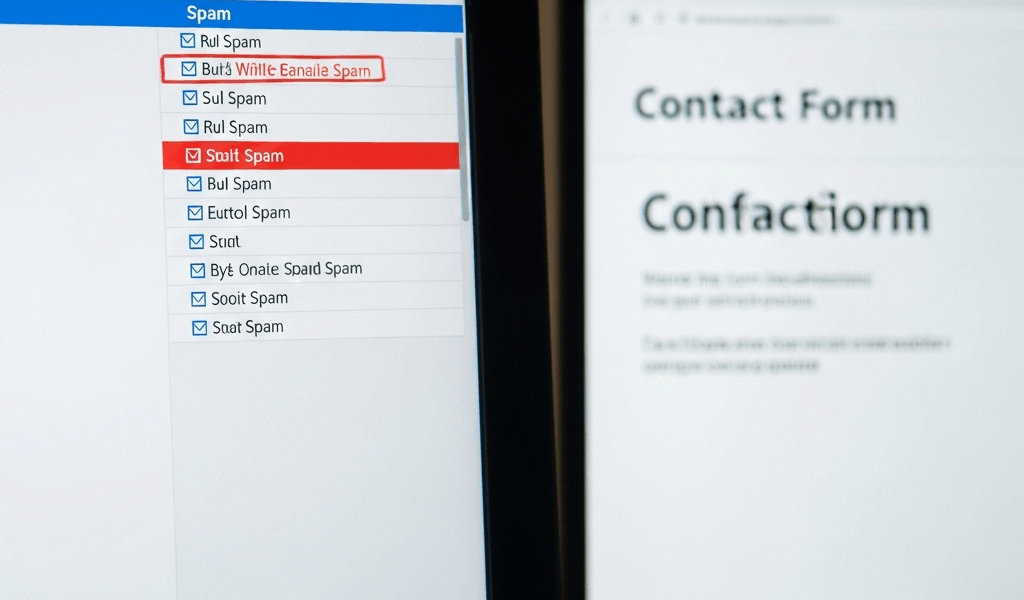
Why Form Emails End Up in Spam
Contact form emails vanishing into spam folders — that’s a problem I see constantly in WordPress support communities, and honestly, it’s one of the most frustrating because the form *works*. It submits. You get the success message. But then your customer’s confirmation email? Gmail devoured it. Outlook quarantined it. Nobody’s complaining because nobody realizes they should be.
The real issue is deliverability, not delivery. Your form isn’t broken — your email provider just doesn’t trust you yet.
Three things cause this. First is authentication — your form is sending emails without SPF, DKIM, or DMARC records set up. Second is sender reputation, which Gmail and Outlook track obsessively. Third is your form plugin’s default settings, which often use generic sending addresses that look suspicious to mailbox providers.
When I first dealt with this on a client site selling consulting services, I spent two days troubleshooting the plugin before realizing the emails were actually sending perfectly. They were just landing in spam. The client thought the form was broken. The lead went nowhere. That one mistake taught me everything about this specific problem — and how to fix it fast.
Email providers use a points system. Missing authentication loses points immediately. Sending from a domain you don’t control loses more. Poor sender reputation — accumulated from bounces, complaints, or generic sending addresses — loses the most. It adds up quickly.
Check Your Sender Authentication Records
SPF, DKIM, and DMARC sound technical. They’re not. Think of them as “permission slips” you give to email servers on your behalf.
SPF (Sender Policy Framework) is the simplest. It’s a DNS record that says “these IP addresses are allowed to send email from my domain.” DKIM (DomainKeys Identified Mail) is a digital signature that proves the email came from you. DMARC (Domain-based Message Authentication, Reporting and Conformance) ties them together and tells inbox providers what to do if an email fails authentication. That’s what makes these three endearing to email systems — they work together.
You need to add these records to your domain’s DNS settings through your hosting provider or domain registrar. This is where most people get lost, but it’s straightforward once you know where to look.
For SPF records: Log into your domain registrar — GoDaddy, Namecheap, whatever you use — and go to DNS settings. Create a new TXT record. Your form plugin documentation will tell you the exact value to add. For WPForms, it’s usually `v=spf1 include:sendgrid.net ~all`. For Gravity Forms with their mail service, it differs. Elementor forms using default WordPress might need your hosting provider’s mail server included. The key is finding what *your specific plugin* recommends, not guessing.
Add it. Wait 24-48 hours for DNS propagation. Check it using a free SPF lookup tool — Mxtoolbox has a decent one.
For DKIM records: This requires your form plugin or mail service to generate the keys. WPForms doesn’t handle DKIM directly — you’d need SendGrid integration. Gravity Forms partners with their own email service. Check your plugin’s email delivery settings. Some plugins include a DKIM setup guide right in the admin panel. Copy the public key they provide, add it as another TXT record in DNS, and verify it worked.
Probably should have opened with this section, honestly. Authentication records change deliverability overnight sometimes. I’ve seen forms go from spam to inbox within hours of adding proper SPF and DKIM records.
For DMARC records: This comes last. Add a DMARC record like `v=DMARC1; p=none; rua=mailto:[email protected]`. The `p=none` policy means “don’t block anything, just report.” Later, after monitoring, you can tighten it to `p=quarantine` or `p=reject`.
One critical detail: Make sure your form plugin is sending *from your domain*, not from some generic address. If your form sends from `[email protected]` or `[email protected]`, even perfect authentication won’t help much. You need to own the sending domain. Period.
Configure Your Form Plugin’s Sending Settings
Configuring the actual form plugin settings is where most people skip critical steps — and then wonder why emails still hit spam.
Open your form builder. Go to settings or email notifications. Find the “From” email address field. This matters enormously. Using an address like `[email protected]` (where yourdomain.com is your actual site) is infinitely better than `[email protected]` or some plugin default. The domain part must match your website’s domain.
In WPForms, go to Form Settings → Notifications. You’ll see a “From Email” field. Set it to something like `[email protected]` or `[email protected]`. Not a Gmail address. Not a generic noreply. Your actual domain — the same one your website runs on.
In Gravity Forms, go to Form Settings → Notifications. The “From” field should again be your domain. Gravity Forms also lets you set up authenticated email delivery through their partner services, which I recommend if you’re sending high volume — say, more than 50 emails per week.
In Elementor, go to the form widget settings → Emails → Email From Address. Same rule applies.
Next, look for “Reply-To” settings if available. This is where responses should go. Set it to an email address you actually monitor — like your business inbox. I use `support@` addresses because they’re professional and easier to delegate.
Some plugins let you choose between sending through WordPress’s default mail function (which uses your server’s mail service) or through an SMTP service like SendGrid, Mailgun, or Brevo. I recommend SMTP services for any form sending more than 10 emails per day — at least if you want consistent inbox placement. They have better deliverability infrastructure. WordPress’s default mail function is often flagged as spam because it lacks proper authentication and sending history.
If using SMTP, install a plugin like WP Mail SMTP. Configure it with your mail service credentials — SendGrid gives you an API key, Gmail requires an app password, Brevo does similar. Once connected, *all* your form emails route through that service, which handles authentication automatically. That’s the magic part.
One setting people miss: Make sure your form isn’t sending from multiple different email addresses. If one form uses `[email protected]` and another uses `[email protected]`, email providers see this as inconsistent sending behavior and dock reputation points. Pick one primary sending address per domain and stick with it.
Test and Monitor Deliverability
Testing is where you actually confirm the problem is fixed — not where you guess.
Send a test form submission to yourself. Then immediately check your Gmail spam folder. Outlook junk folder. Check your email’s Promotions tab if it has one. Look for the email. If it’s there, your authentication still needs work. If it’s in inbox, you’re improving. If it lands in a completely different folder like Promotions in Gmail, that’s actually fine — that’s Gmail’s categorization, not a spam flag. ISPs distinguish between marketing mail and spam mail.
Send 5-10 test emails over a few days from different form entries. Consistency matters to ISPs.
Use a free inbox placement tool. Mailtrap, GlockApps, or 250ok let you send a test email and see where it lands across major providers — Gmail, Outlook, Yahoo, etc. These tools cost money for detailed reports, but the basic version shows inbox vs. spam placement instantly. This tells you if you have a real problem or if it’s provider-specific.
Gmail filter troubleshooting: If your form emails land in spam in Gmail, check the sender’s domain authentication first (we covered this). If authentication looks good, the issue might be sender reputation or content. Avoid spam trigger words in form emails — “verify your account,” “confirm payment,” “limited time offer.” Use plain text instead of HTML if possible. Keep emails short and simple.
Outlook/Microsoft troubleshooting: Outlook is stricter about sender reputation than Gmail. If your domain has no sending history, you’ll probably hit junk folder initially. Keep sending legitimate emails. Reputation builds over time — usually 2-4 weeks of consistent good behavior. If you’re in Outlook’s junk folder consistently, try reducing email frequency temporarily, then gradually increase it as your reputation improves.
Check your form plugin’s email logs if it has them. WPForms shows email send status in the Entries section. Gravity Forms logs delivery attempts under Form Settings. These logs tell you if the plugin actually sent the email or if it failed silently — which is different from spam folder placement.
Quick Diagnostic Checklist
- Does your form’s “From” email address use your actual domain (yourdomain.com), not Gmail or a generic service?
- Have you added an SPF record to your domain’s DNS settings?
- Have you added a DKIM record (if your plugin supports it)?
- Did you test an email submission and check the spam folder yourself — not just assume it worked?
- Are you sending through WordPress’s default mail function or through an SMTP service?
- Does your domain have a sending history with major ISPs, or is it brand new?
- Are you using the same sending address across all forms, or different addresses per form?
- Have you checked if Gmail or Outlook has a specific filter rule blocking your domain?
Work through this checklist methodically. Authentication records take the longest — 24-48 hours — so set those up first and then wait. Form plugin configuration changes take effect immediately. Testing takes a few days to show patterns because ISPs build reputation slowly.
Your contact form isn’t broken. It’s just that inbox providers don’t know you yet. Authentication, consistent sender settings, and reputation-building fix this. Don’t make my mistake of troubleshooting the plugin when the real issue was always deliverability.


Stay in the loop
Get the latest web sme updates delivered to your inbox.