“`html
Contact Form Not Working After WordPress Update — Here’s Why It Happens
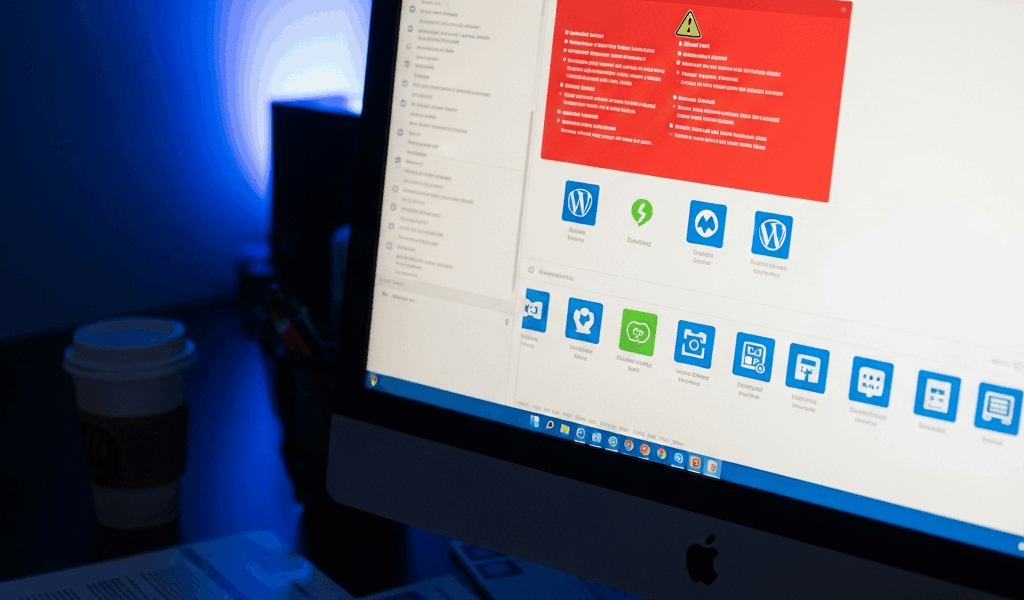
I updated WordPress to version 6.4 last month and watched my contact forms vanish without warning. One moment the forms were collecting leads. The next, I had a blank page and increasingly frustrated email inquiries from potential clients asking why the contact form “didn’t exist.” Turns out, this nightmare is surprisingly common—contact form not working after WordPress update is one of the most searched support queries for a reason.
Here’s what nobody tells you: the problem isn’t your hosting. It’s not your email settings either. When WordPress core updates, something underneath shifts — and outdated plugins that haven’t been updated to match the new WordPress version start breaking silently.
I’ve spent the last week digging through error logs and plugin changelogs to solve this for my own sites. So, without further ado, let me share exactly what I found.
Why Forms Break After WordPress Updates
WordPress updates introduce architectural changes. Sometimes those changes are massive. When you jump from WordPress 6.3 to 6.4, the platform removes deprecated functions, changes how hooks fire, and updates REST API endpoints. Your contact form plugin might be relying on functions that no longer exist.
But what is the technical reality here? In essence, form plugins hook into specific WordPress functions to process submissions. But it’s much more than that—if WordPress removes or changes how those functions work, the plugin breaks. It’s like building a door frame for a wall that no longer exists.
The second issue hits different: PHP version compatibility. WordPress 6.4 dropped support for PHP 7.2 and 7.3. If your hosting provider hasn’t upgraded your server to PHP 8.0 or higher, some form plugins simply won’t run — they’ll fail silently, which is worse than failing loudly because you won’t know what’s wrong.
Third, your form plugin itself might have pending updates that add compatibility with the new WordPress version. An outdated WPForms or Gravity Forms installation will conflict with newer WordPress versions. Plugin developers typically push updates within weeks of major WordPress releases, but if you don’t update them, the collision happens immediately.
Step 1 — Deactivate All Plugins and Test
This is your diagnostic step. Probably should have opened with this section, honestly — I wasted an hour checking email settings before trying the obvious thing.
Here’s the process:
- Go to WordPress admin → Plugins → Installed Plugins
- Deactivate every plugin except the one you’re diagnosing. Yes, all of them. WooCommerce, Yoast, Akismet, everything. Select the “Deactivate” bulk action and apply it.
- Visit your contact form page in a new tab. Does the form appear now? If yes, you have a plugin conflict. If no, skip to Step 3 about PHP versions.
- Re-enable your form plugin only (WPForms, Gravity Forms, Elementor Forms, etc.). Refresh the page. Does it work?
- Start re-enabling other plugins one at a time. After each activation, check if the form still works. When the form breaks, you’ve found your culprit.
The plugin causing the conflict is usually something you’d never suspect. For me, it was a lightweight SEO plugin I’d forgotten I had installed. It was hooking into admin_enqueue_scripts in a way that conflicted with how WPForms loads its form builder after the update.
Common culprits? Poorly maintained caching plugins, outdated page builders, old custom code plugins that manually register post types. These tend to fail first because they’re not actively maintained.
Step 2 — Check Plugin Update Status
Once you’ve verified which plugin is causing the issue — or if no plugin is the culprit — check whether your form plugin itself needs updating.
Go to Plugins → Installed Plugins. Look for your form plugin. If there’s an “Update available” notice, that’s your answer. Update it immediately.
WPForms users should check wpforms.com/downloads/changelog. Gravity Forms? Head to gravityforms.com/changelog. Running Elementor Forms instead? That’s inside Elementor itself — go to elementor.com/changelog. These changelogs always list WordPress compatibility fixes for major updates.
Form plugin developers typically update within 1-3 weeks of a WordPress major release. If your WordPress updated but your form plugin hasn’t, that’s a timing issue, not a fundamental problem. Update the plugin and test again.
Some plugins do automatic updates. If that’s enabled on your site, check the plugin’s version number against the latest release. You might need to manually trigger an update if automatic updates failed silently (which happens more often than anyone admits).
Step 3 — Verify PHP Version Compatibility
Here’s what I didn’t know until researching this: WordPress 6.4 runs on PHP 7.4 and up, but many plugins specifically require PHP 8.0 or 8.1. If your hosting is still running PHP 7.4, some form plugins won’t work even if they’re updated.
To check your PHP version:
- Go to Tools → Site Health in WordPress admin
- Click the “Info” tab
- Look for “PHP version” under Server section
If you see anything below 8.0, contact your hosting provider’s support chat. Most provide one-click PHP upgrades now — at least if you’re with the major providers. Bluehost, SiteGround, and Kinsta all offer version selection in their control panels. It takes 30 seconds.
WPForms requires PHP 7.4 minimum. Gravity Forms requires PHP 7.2 minimum but runs best on 8.0+. Elementor Forms requires PHP 7.0 but has known issues on anything below 8.0. Check your specific form plugin’s documentation to see its requirements.
I called my hosting provider thinking I’d be on hold for an hour. They upgraded me to PHP 8.1 in three minutes. Sometimes the solution is that simple.
How to Prevent This in Future Updates
Once you’ve fixed this problem, never let it happen again. These are the actual prevention steps I implement now:
Test on staging before updating production. Most hosting providers offer a one-click staging environment. Update WordPress, test every form, then deploy to live. This costs you an hour but saves days of troubleshooting.
Update plugins before updating WordPress core. Don’t do them simultaneously. Update all your plugins (especially form plugins) first — at least if you want to avoid conflicts. Wait 24 hours. Then update WordPress. This prevents half the conflicts because plugin developers have time to push compatibility patches.
Disable form plugins during major WordPress updates. This might seem paranoid, but it’s effective. Before updating to WordPress 6.5 (or any major version), deactivate your form plugin, do the WordPress update, re-enable the form plugin, then update the form plugin itself. Three small steps instead of one big one.
Set up automatic plugin updates for form plugins specifically. WPForms and Gravity Forms both support automatic updates. Enable this for form-related plugins so they update within hours of a WordPress release, not days.
Keep PHP updated to the latest stable version. Not the bleeding edge, but the latest stable. Right now that’s PHP 8.3. Ask your host about auto-updating PHP or set a reminder to check your version quarterly.
Back up your database before any major update. WordPress → Tools → Export or use a backup plugin like UpdraftPlus. Takes two minutes. If something goes catastrophically wrong, you have an exit route.
I implemented all five of these after that contact form disaster. I haven’t had a broken form since.
The contact form not working after WordPress update usually isn’t a hosting issue, an email problem, or a mystery. It’s a compatibility mismatch between outdated plugins and new WordPress architecture. Follow these three steps — deactivate to diagnose, update the form plugin, verify PHP version — and you’ll identify the exact cause within 15 minutes.
“`


Stay in the loop
Get the latest web sme updates delivered to your inbox.