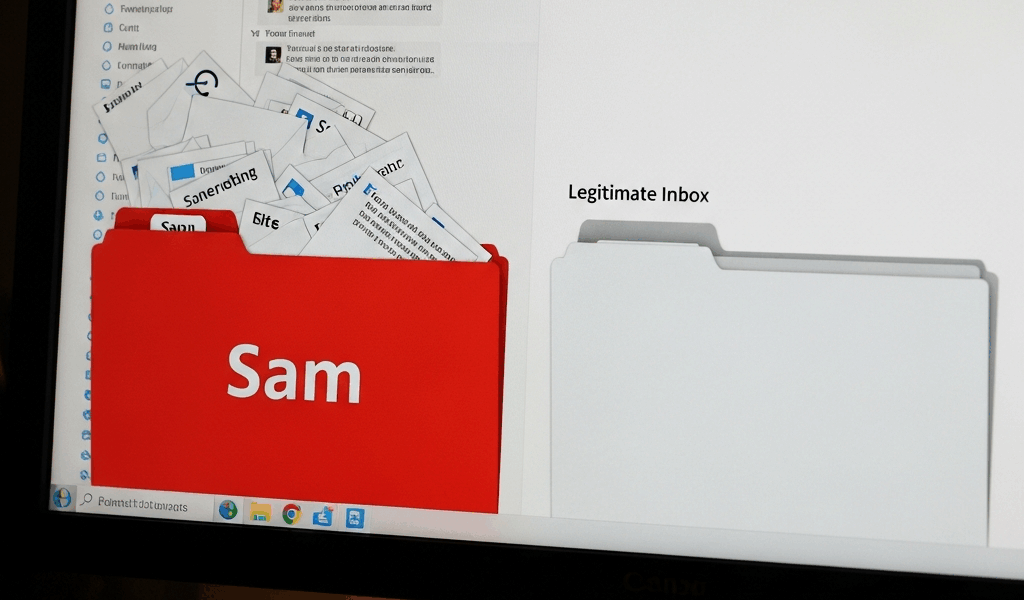
Start Here — Why Your Mailchimp Emails Keep Landing in Spam
Email deliverability has gotten complicated with all the filtering noise flying around. As someone who’s managed campaigns for a 12-person marketing agency and a bootstrapped SaaS startup simultaneously, I learned everything there is to know about watching perfectly good emails vanish into spam folders. Today, I will share it all with you.
Your open rates collapsed. Or your subscribers started texting you — actual texts — asking why they never got your newsletter. That’s the moment it hits you. Something is broken. But here’s what I found after two years of troubleshooting this exact problem: it’s almost always fixable, and it almost always comes down to three things.
The three culprits, ranked by how often I actually see them cause problems:
- Missing domain authentication (DKIM, SPF)
- Content that triggers spam filters
- A list full of dead weight and unengaged subscribers
We’ll walk through each one — with the exact Mailchimp settings to check and the real fixes you can apply today. So, without further ado, let’s dive in.
Set Up Domain Authentication in Mailchimp First
Probably should have opened with this section, honestly. Domain authentication is the single biggest reason I see Mailchimp emails get filtered, and it’s shockingly easy to miss when you’re rushing through a new account setup.
Here’s the core problem. When you send from Mailchimp without domain authentication, Gmail, Outlook, and Yahoo have zero way to confirm you actually own the domain you’re sending from. They treat you like a stranger knocking on someone’s door at midnight. Unverified senders get flagged. Your email hits spam before a human ever sees it.
Mailchimp uses two main authentication methods — and you need both.
SPF Records — The First Layer
But what is SPF? In essence, it’s a text record you add to your domain that tells receiving mail servers “yes, Mailchimp has permission to send on my behalf.” But it’s much more than that — it’s your first handshake with inbox providers, and skipping it is like mailing a letter with no return address.
To set this up in Mailchimp:
- Go to Audience in the left menu
- Click Audience settings
- Select the Domains tab
- Your domain will be listed with an SPF status next to it
- If it reads “Unverified,” click the domain and follow the prompts to add the SPF record to your domain host — GoDaddy, Namecheap, Bluehost, whatever you’re running
The record itself looks like this: v=spf1 include:mailchimp.com ~all
Propagation takes 24–48 hours. Mailchimp checks automatically. You don’t need to do anything else after adding it.
DKIM — The Stronger Protection
DKIM is DomainKeys Identified Mail. It cryptographically signs your outgoing emails so receivers can confirm the message came from you — and wasn’t tampered with somewhere along the way. More robust than SPF alone. Not optional anymore.
In the same Domains tab, you’ll see a DKIM status sitting right next to your SPF status. Click to verify. Add the DNS record to your domain host the same way you did with SPF. Same 24–48 hour window applies.
Both verified? Good. Your sender reputation just improved in a meaningful way.
DMARC — The Bonus Step
If you’re sending serious volume — anything above 5,000 emails per month — set up DMARC too. It tells inbox providers what to do when someone tries to spoof your domain. Gmail and Yahoo started requiring it for bulk senders in 2024. Start now, before it becomes urgent. Add it to your domain records the same way you handled SPF and DKIM — Mailchimp doesn’t manage this one for you, it’s purely a domain-level setting.
Not doing any of this? Your emails will keep getting filtered no matter what else you fix. Full stop.
Check Your Email Content for Spam Triggers
Once authentication is locked in, the next place spam hides is the content itself. Filters scan your subject line, body copy, image ratio, and raw HTML for patterns they’ve seen from actual spammers. You might be accidentally copying those patterns.
I’m apparently aggressive with exclamation points and subject line caps — old habits from writing retail ads — and that combination never works for deliverability. Don’t make my mistake.
Subject Line Red Flags
ALL CAPS subject lines scream spam. Filters catch them immediately. Same with excessive punctuation: “You won’t believe what happens next!!!!!!” reads like a 2009 phishing attempt to an algorithm.
Bad: “FREE OFFER — No Obligation — Act Now!!!”
Better: “50% off this week only”
Certain words carry baggage with spam filters. “Free,” “Guaranteed,” “No obligation,” “Limited time,” “Act now,” “Click here” — using one isn’t a death sentence. Using five in a single subject line is. I keep a sticky note on my monitor with the worst offenders. Low-tech, but it works.
Body Content Issues
Too many links crammed into a short email raises immediate suspicion. A 200-word email with 8 outbound links looks like a phishing template. Aim for 1–3 links per campaign — at least if you want the email to actually reach anyone.
Image-heavy emails are riskier than most people realize. If your email is 90% image and 10% text, filters treat it like an evasion tactic. The ratio should sit around 60–70% text, 30–40% images at most. Include actual readable copy — not just a giant banner graphic with a button.
Missing a plain-text version? Mailchimp includes it by default, but customized templates sometimes strip it out. Check yours. Spam filters specifically look at whether your email degrades gracefully without images loaded.
Use Mailchimp’s built-in tools before every send:
- Click Preview and Test inside your campaign builder
- Use the Inbox Preview feature — top right corner — to see real renders in Gmail, Outlook, and Yahoo
- Run the Deliverability Assistant — it flags risky words and formatting issues before you send
These catch most of the obvious triggers. Takes five minutes. Worth every second.
Clean Your Mailchimp Audience List
A dirty list kills deliverability faster than anything else. That’s what makes list hygiene so endearing to us email nerds — it’s unglamorous, nobody talks about it, and it moves the needle more than any subject line tweak ever will.
Here’s the mechanics of why it matters. Sending to thousands of invalid addresses or chronically unengaged subscribers piles up bounces and spam complaints. Inbox providers track that signal. Your sender reputation drops. Everything you send — even to engaged subscribers — starts getting filtered.
High bounce rates are the killer. Above 5%? You have a real problem.
How to find unengaged contacts in Mailchimp:
- Go to Audience
- Click Manage audience and select your list
- Open the Segments tab
- Create a new segment: Last campaign open date was more than 6 months ago
- Review the count. That number is dead weight.
Delete them or move them to a separate inactive list. Either way, stop sending to them. They drag down your metrics and your reputation simultaneously.
Frustrated by slow organic growth early on, I bought a “pre-qualified list” of 5,000 leads for $200 from a sketchy vendor I found via a forum. The bounce rate hit 18% within the first send. Mailchimp flagged the account. I spent three weeks rebuilding sender reputation from scratch. Purchased lists are universally garbage — build yours organically or don’t build it at all.
Still Going to Spam — What to Try Next
Checked authentication, cleaned your content, scrubbed the list, and emails are still landing in spam? A few edge cases worth investigating before you panic.
Your Sending Address
Sending from a Gmail or Yahoo address? Stop immediately. Free email domains trigger filters hard, especially for bulk sends. Go to Account settings > Sender domains in Mailchimp and set your primary address to something like [email protected]. Branded domain only.
Domain Warming
If you just migrated to a new sending domain, do not blast 50,000 subscribers on day one. New domains have no reputation — none. Start with 500 emails, then 2,000, then ramp over the course of a week or two. That was the process I used when a client rebranded and switched domains in 2022. Took 11 days to reach full volume safely.
Whitelisting
Ask engaged subscribers to add your sender address to their contacts. It’s not a real fix — more of a band-aid — but it works for your most active readers and it signals positive engagement to inbox providers over time.
Improvement timeline: expect to see movement in 5–7 days after making fixes, with full reputation recovery closer to 2–3 weeks out.
Quick Checklist
- SPF and DKIM verified under Mailchimp Audience > Domains
- No all-caps subject lines or excessive spam trigger words
- Image-to-text ratio is 40% images max
- Bounce rate sitting under 5%
- Unengaged subscribers (6+ months inactive) removed from active list
- Sending from a branded domain — not Gmail, not Yahoo
Fix these in order. Most of you will solve the problem at step one. That’s not a guess — that’s what I see every time.


Stay in the loop
Get the latest web sme updates delivered to your inbox.