“`html
Why Form Validation Fails on Submit
I spent three hours debugging a client’s contact form last Tuesday before realizing the validation wasn’t failing—it just wasn’t running at all. The form submitted blank fields like nothing was wrong. That’s when I learned the difference between what validation *should* happen and what validation actually *does* happen.
Form validation on WordPress has gotten complicated with all the layers flying around. Most people only think about one of them.
HTML5 browser validation runs first. When you mark a field as required in your form builder, it adds the required attribute to the input element. Modern browsers catch empty fields before anything else executes — at least if you want proper validation. This validation happens entirely in the visitor’s browser. Zero server involvement. It’s fast and works offline, but browsers don’t enforce it uniformly, and tech-savvy users bypass it with DevTools in seconds.
JavaScript validation comes second. This is where WordPress form plugins actually live. WPForms, Gravity Forms, Contact Form 7 — they all inject custom JavaScript that runs when someone clicks submit. This code checks field values against your configured rules (email format, minimum length, custom regex patterns). JavaScript validation doesn’t require a server round-trip, so it feels instant. But JavaScript breaks constantly. jQuery conflicts. Script loading order matters. Plugins that minify or defer scripts mess with timing.
Server-side validation is your safety net. Even if JavaScript fails completely, your server should catch invalid data before processing it. This happens in PHP, after the form submission reaches your WordPress backend. Most developers skip this layer entirely. Probably should have opened with this section, honestly. That’s the real mistake. Because when JavaScript validation breaks, nobody knows, and your form silently accepts garbage data.
The submit button triggers none of these by default. You have to wire them up. That’s where most setups fail.
Check Your Form Field Configuration First
Before touching code, verify your form builder actually knows a field should be validated.
Open your form editor in WPForms. Click any field. Look for a “Required” toggle in the right sidebar — it’s usually gray and off by default. Toggle it on. Save the form. That’s the minimum requirement. Without this toggle, HTML5 validation won’t add the required attribute, and the JavaScript validation rules won’t even look at that field.
In Gravity Forms, edit your form and click a field. The “Field Settings” panel on the right shows an “Advanced” tab. Open it. Check the “Field is Required” checkbox. Same concept, different interface. Gravity Forms also has validation rules separate from the required toggle — you can set minimum character length, email format, phone number format. All of these live in that same Advanced tab under “Validation”.
Contact Form 7 hides validation in text tags. If you’re using the classic tag editor, you’d write [email* your-email] with an asterisk to mark it required. The asterisk tells CF7 this field must validate. Without it, submission accepts empty values. If you’re using the Gutenberg UI (CF7 7.4+), there’s a checkbox under each field labeled “Required”. Make sure it’s checked.
Formidable Forms shows field settings in a modal. Click a field. Look for “Required Field” toggle. Enable it. Then scroll down to the “Validation” section where you can add custom rules — email, URL, numeric range, whatever you need.
Do this for every field that should be validated. Save. Test submission with empty fields. Your browser should show an error message before the form goes anywhere.
Fix JavaScript Validation Conflicts
When HTML5 validation works but JavaScript validation doesn’t, you have a script conflict.
The most common culprit is jQuery version mismatch. WordPress loads jQuery by default, usually version 3.6 or newer. But if your theme or another plugin loads an older jQuery (2.x or 1.x), form validation JavaScript written for modern jQuery breaks silently. The form still submits because the validation code never runs.
Check your WordPress debug log. Add this to wp-config.php if it’s not already there:
define('WP_DEBUG', true);
define('WP_DEBUG_LOG', true);
define('WP_DEBUG_DISPLAY', false);
This creates /wp-content/debug.log. JavaScript errors get logged there. Search for the form validation keyword and your form ID. You’ll see actual error messages like “$ is not defined” or “form.validate is not a function” — these tell you exactly what broke.
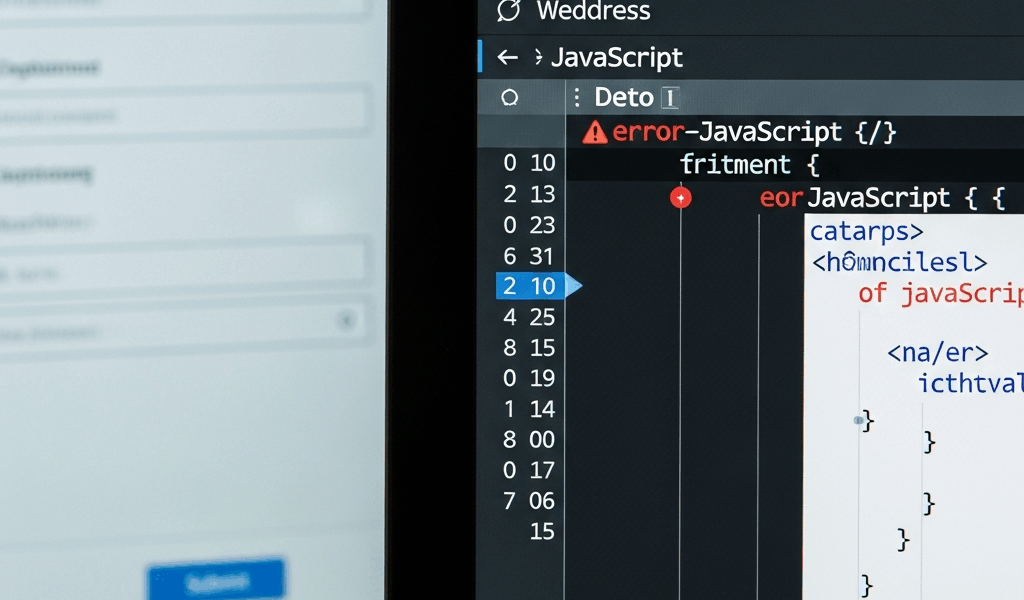
Open browser DevTools while testing the form. Press F12. Go to Console tab. Submit the form with invalid data. If validation JavaScript runs correctly, you’ll see validation error messages in the console. If you see a red error instead — especially one mentioning undefined functions or missing jQuery — that’s your conflict.
Script loading order matters too. If the form validation script loads before jQuery finishes loading, validation code breaks immediately. WordPress normally handles this through script dependencies, but some themes dequeue jQuery and reload it manually, or load form scripts in the footer before core jQuery in the header.
Fix it with this filter in your theme’s functions.php:
add_action('wp_enqueue_scripts', function() {
  wp_dequeue_script('jquery');
  wp_enqueue_script('jquery',
    'https://code.jquery.com/jquery-3.6.0.min.js',
    [], '3.6.0', false);
  wp_enqueue_script('jquery-validate',
    'https://cdn.jsdelivr.net/jquery.validate/1.19.5/jquery.validate.min.js',
    ['jquery'], '1.19.5', false);
}, 5);
The priority 5 loads these before most plugins, ensuring proper order.
Check for minification conflicts too. Some caching plugins minify JavaScript and break inline validation code. Test with minification disabled temporarily. In WP Super Cache, disable “Precompressed cache files”. In Autoptimize, turn off “Aggregate JavaScript files”. If validation suddenly works, minification is your problem. You’ll need a custom filter to exclude form validation scripts from minification, or update to a newer plugin version that handles it correctly.
Enable Server-Side Validation Logging
Client-side validation is nice for user experience, but server-side validation is where real safety lives.
Most form plugins log validation failures, but you have to know where to look. In WPForms, go to Settings → Tools. Enable “Debug Log” and “Email Errors”. Set the log file path to something accessible, like /wp-content/wpforms-debug.log. Now when a form fails validation on the server, that log captures why.
Gravity Forms logs to your WordPress debug log automatically. Check /wp-content/debug.log for entries with “Gravity_Forms” in them. You’ll see validation failures like “Field 3 failed email validation” with the submitted value and validation rule that failed.
Contact Form 7 doesn’t log failures by default. Enable logging with this code snippet in your theme’s functions.php:
add_filter('wpcf7_before_send_mail', function($contact_form, $abort, $submission) {
  $data = $submission->get_posted_data();
  error_log('CF7 Submission: ' . print_r($data, true));
  return $contact_form;
}, 10, 3);
Now every form submission gets logged, including which fields passed or failed validation.
Formidable Forms has a built-in logging system under Settings → Tools → Debug. Enable it. Every form submission gets recorded with timestamps, submitted values, and validation results. You can view logs directly in the admin panel.
When a form fails to validate server-side, check these logs immediately. They’ll show you the exact field that failed and why. Maybe the field was marked required but no required attribute hit the HTML. Maybe the validation rule was misconfigured. Maybe the plugin version is outdated and has a known bug.
Plugin-Specific Fixes by Form Builder
WPForms — Validation Enabled but Not Triggering
WPForms 1.5.8 through 1.6.2 had a known bug where validation didn’t trigger on submit if the form had custom CSS classes. Update to 1.6.3 or later. If you can’t update, add this code to functions.php as a workaround:
add_filter('wpforms_field_properties', function($properties, $field) {
  if (isset($field['required']) && $field['required']) {
    $properties['inputs']['primary']['attr']['required'] = 'required';
  }
  return $properties;
}, 10, 2);
This forces the required attribute on every field marked required in your form settings, ensuring HTML5 validation runs even if JavaScript fails.
Check Form Settings → Advanced → Form Validation. Make sure “Enable Live Validation” is toggled on. This is separate from required field validation and controls whether errors show up in real-time as users type.
Gravity Forms — Custom Validation Rules Not Working
Gravity Forms 2.4.x introduced a breaking change in how custom validation rules attach to submit buttons. If you’re using the gform_validation filter, make sure your filter function returns the form after modifications:
add_filter('gform_validation', function($validation_result) {
  $form = $validation_result['form'];
  foreach($form['fields'] as &$field) {
    if ($field['id'] == 3 && empty(rgar(GFFormsModel::get_current_lead(), $field['id']))) {
      $field['validation_message'] = 'This field is required.';
      $validation_result['is_valid'] = false;
    }
  }
  $validation_result['form'] = $form;
  return $validation_result;
}, 10, 1);
In form settings, go to Advanced → Validation. Check “Enable Field Validation” and “Enable Form Validation”. Then verify each field that needs validation has its validation type set correctly in the field settings (email, number, date, etc.).
Contact Form 7 — Validation Errors Not Displaying
Contact Form 7 displays validation errors in a span with class .wpcf7-not-valid-tip. If these aren’t showing, your theme CSS is hiding them. Add this to your theme’s custom CSS:
.wpcf7-not-valid-tip {
  display: block !important;
  color: #dc3545;
  font-size: 14px;
  margin-top: 5px;
}
Also check that your form tags include the novalidate attribute on the form element itself. Sometimes CF7 adds this to bypass HTML5 validation, but then if the JavaScript doesn’t run, nothing validates. Remove it from the form tag if it’s there.
Formidable Forms — Submit Button Not Triggering Validation
Formidable’s submit button needs a “Default Action” set to trigger validation. Edit your form. Click the submit button. In the button settings, make sure “Submit Form” is selected under “On Click”. If it’s set to “None” or a custom action, validation won’t fire automatically.
Also check Advanced Settings → Conditional Logic. If you’ve hidden the submit button conditionally, validation still won’t run on that button. Create a separate visible submit button for validation purposes if needed.
Test your forms now. If validation still fails, check your browser console one more time for JavaScript errors, then check your server logs for PHP warnings. One of those two sources will tell you exactly what’s broken.
“`




Stay in the loop
Get the latest web sme updates delivered to your inbox.