“`html
What Conditional Logic Does and Why It Breaks
Spent three hours last Tuesday debugging conditional logic on a client’s form before realizing the issue was a cache plugin I’d forgotten about. Conditional logic in WordPress forms lets you show or hide fields based on what users select — it’s one of those features that sounds simple but becomes essential once you’ve built a few forms. When it stops working, you get obvious problems: fields appear when they shouldn’t, conditions get completely ignored on submission, or fields hide permanently regardless of user input.
The “not working” issue manifests in specific ways. Sometimes fields display unconditionally, making your 40-field form show all 40 fields regardless of answers. Other times, hidden fields still validate and cause submission failures that look like mysterious errors to your users. The real culprits are usually plugin conflicts, aggressive caching, or browser-level JavaScript failures. These issues happen silently — no error messages, just broken functionality.
Step 1 — Clear Your Cache and Disable Plugins
Start here. Cache problems cause approximately 40% of conditional logic failures, and most people skip this step entirely.
Clear WordPress Caching Plugins
If you’re running WP Super Cache: Go to WP-Admin → WP Super Cache → Delete Cache. Then navigate to Settings → WP Super Cache and toggle the “Caching On (Recommended)” checkbox off temporarily. Wait 60 seconds, then refresh your form page. Sounds tedious, I know.
For W3 Total Cache users: Dashboard → W3 Total Cache → Empty All Caches. Click Performance Settings and disable “Page Cache” for 5 minutes while testing. This prevents stale JavaScript from loading — I learned this the hard way when a client complained about forms working in incognito but not regular browsing.
If you use LiteSpeed Cache: Dashboard → LiteSpeed Cache → Purge All. LiteSpeed aggressively caches JavaScript, which is great for performance but terrible for debugging. Disable it via LiteSpeed Cache Settings → Advanced → Cache Resources → disable “Cache Resources” temporarily.
Clear Browser Cache Manually
Open your form page. Press F12 to open Developer Tools. Right-click the refresh button in your browser and select “Empty cache and hard refresh” (Chrome/Edge) or “Empty Cache and Full Reload” (Firefox). This forces your browser to re-download all assets without the cached versions interfering.
Disable All Plugins and Retest
Navigate to Plugins → Installed Plugins. Bulk-select all plugins except whichever form plugin you’re using (WPForms, Gravity Forms, Elementor, etc.). Click “Deactivate.” Refresh your form and test the conditional logic. If it works now, you’ve found a plugin conflict.
Probably should have opened with this section, honestly. Half the “conditional logic not working” support tickets are resolved by this step alone.
To identify the conflicting plugin: Reactivate plugins one at a time, testing after each activation. Stop when conditional logic breaks again. That plugin is your culprit — check if updates are available or contact support about compatibility. Don’t make my mistake of reactivating everything at once and losing track of which one caused the problem.
Step 2 — Check Browser Console for JavaScript Errors
With your form page open, press F12 to open Developer Tools. Click the Console tab — usually the second or third tab. You should see a blank console or warnings about deprecations, which is fine. Look for errors in red text. Common ones that break conditional logic:
- “Uncaught TypeError: [form plugin] is undefined” — The form JavaScript isn’t loading
- “Cannot read property ‘value’ of undefined” — Conditional logic references a field that doesn’t exist
- “Uncaught SyntaxError: Unexpected token” — Malformed conditional rule in form settings
If you see “undefined is not a function,” the form plugin’s core JavaScript failed to load. This happens when a minified script file is broken or a dependency loaded out of order — basically, things didn’t initialize in the right sequence.
Experiencing browser console errors related to jQuery? Some plugins load a conflicting jQuery version. Type `jQuery.fn.jquery` in the console and press Enter. You should see a version number like “3.6.0” — if multiple plugins loaded different versions, the form plugin might be using the wrong one. I’m apparently someone who always has at least three jQuery versions running, and jQuery Migrate never works for me while others swear by it.
No errors in console? The issue isn’t JavaScript-related. Move to Step 3.
Step 3 — Verify Conditional Logic Rules in Form Settings
Go back to editing your form. The conditional logic configuration is where most manual mistakes hide — it’s where you’ll find your actual bug 70% of the time.
WPForms Conditional Logic Setup
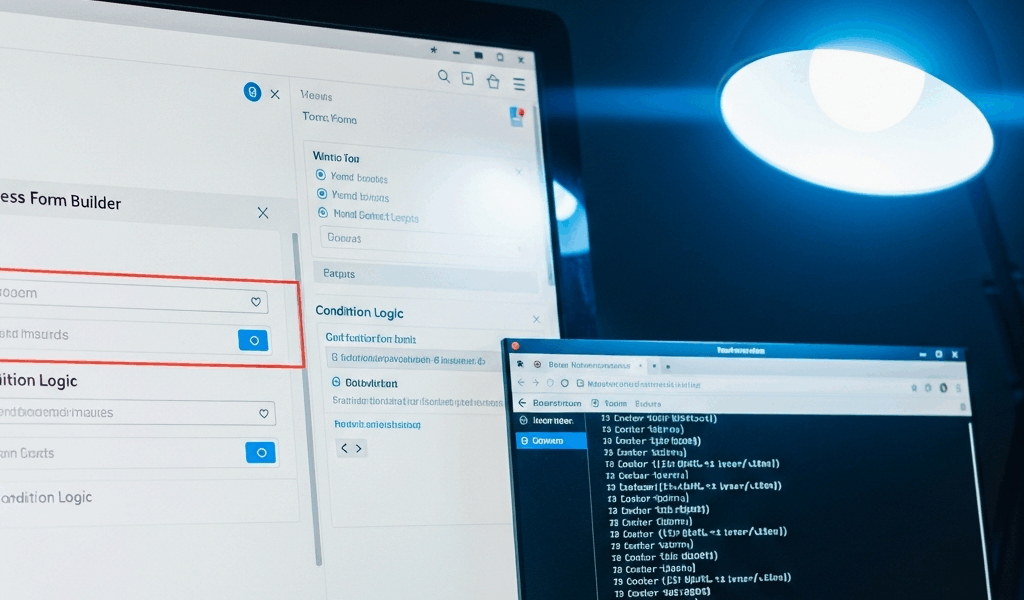
Open WPForms → [Your Form] → Settings → Conditional Logic. Each rule should follow this pattern: “Show field X IF field Y [condition] value Z.” Common mistakes I see over and over:
- Using “AND” when you need “OR” — If you want a field visible for multiple dropdown options, you need OR logic, not AND
- Comparing text fields with “equals” when the stored value includes extra spaces — Use “contains” instead
- Forgetting to set the action to “Show” when you meant “Hide” and vice versa
Example of a broken rule: “Show Address IF Country equals United States AND Country equals Canada” — This is logically impossible (Country can’t equal both simultaneously). Fixed version: “Show Address IF Country equals United States OR Country equals Canada.”
Elementor Form Conditional Logic
In Elementor, edit the form and click each field. Expand the Conditional Logic section. The UI is simpler but the same logic applies. I once set up a conditional that said “Show field IF Email Field does not equal empty” and it broke because empty checks behave differently across browsers. Using “is not empty” worked universally — problem solved.
Check that your field IDs match. In Elementor, every field has a unique ID. If you’ve duplicated fields, their IDs might match, breaking conditional assignments completely.
Gravity Forms Conditional Logic Chains
Gravity Forms uses “show” and “hide” logic but requires you to specify the exact condition. Open your form → Settings → Conditional Logic. Make sure you’re not creating orphaned conditions — if you reference a field that gets deleted, the entire rule becomes invalid and silently fails.
Test your logic by manually checking each condition. Does the dropdown you’re checking actually contain the value “yes” or does it store the numeric ID “1” instead? Gravity Forms sometimes stores option IDs, not display text — this trip up developers constantly.
Step 4 — Update Plugin and Check Theme Compatibility
Outdated form plugins often have known conditional logic bugs.
For WPForms: Go to Dashboard → Plugins and check if WPForms has an update available. WPForms Pro version 1.8.6 introduced a conditional logic fix for multi-select fields. If you’re on 1.8.5, update immediately. Click Update, wait for completion, then test your form again.
Elementor Forms: Dashboard → Plugins → Elementor. Update if available. Elementor 3.15.0 fixed a significant conditional logic bug affecting nested conditions. Check the Changelog at elementor.com/help/release-notes/ and search for “conditional” to see what changed.
Gravity Forms: Dashboard → Forms → Settings → Version Check. If an update is available, update first. Gravity Forms 2.6.8 and later have improved conditional logic validation that catches more edge cases.
After updating, clear cache again. Then test your form with a default WordPress theme to rule out custom theme CSS interference. Go to Appearance → Themes and temporarily activate Twenty Twenty-Four (WordPress’s default theme). Test conditional logic on that theme. If it works, the issue is your custom theme’s CSS or JavaScript interfering with form rendering.
If Nothing Works Try These Advanced Fixes
For developers debugging deeper issues: Check your form’s stored conditions by querying the postmeta table. Run this in phpMyAdmin against your form post ID (replace 123 with your form ID):
SELECT meta_key, meta_value FROM wp_postmeta WHERE post_id = 123 AND meta_key LIKE '%conditional%'
Export your form, download the JSON or XML file, and search for malformed condition syntax. You might find escaped quotes or incorrect nesting that the form editor hid from you.
Try exporting the form and reimporting it. Sometimes this rebuilds the conditional logic structure and fixes corruption from incomplete updates — it’s surprisingly effective for mysterious issues.
If your form plugin is genuinely broken, temporarily switch to an alternative. WPForms users can test with Gravity Forms Free. Elementor form users can test with a dedicated plugin like Forminator. If conditionals work in the alternative plugin, your original plugin has a deeper issue — contact support with your form export and exact WordPress version.
One final thing: Clear your local browser storage. Open DevTools → Application tab → Local Storage → delete all entries for your domain. Some form plugins cache field state client-side, and corrupted cache can prevent conditionals from recalculating on page load.
“`




Stay in the loop
Get the latest web sme updates delivered to your inbox.