Why Your Google Forms Responses Aren’t Showing Up
Google Forms responses not appearing is the kind of problem that hits differently when you’re sitting at your desk waiting for survey data that never materializes. I’ve been managing feedback forms for client research for five years now, and I can tell you this is genuinely one of the most stressful 20 minutes of any project manager’s week. The form looks fine. People are submitting. But the responses? Gone. Nowhere to be found.
Here’s what I learned after troubleshooting this exact scenario maybe 40 times — the issue almost never stems from something mysterious. It’s almost always one of five specific things that are either accidentally toggled off or quietly misconfigured somewhere in your form or sheet settings.
Quick Checklist Before You Panic
Before we dig into the deeper fixes, run through these five items. I’ll explain each one properly in the sections below, but honestly, if you’re in crisis mode right now, here’s what to check:
- The Responses tab is actually enabled in your form settings — sounds obvious, but it’s off by default for some collaborators
- Email notifications are toggled on in Responses > three-dot menu, assuming you’re waiting for notification emails
- Your connected Google Sheet isn’t full — Google Sheets has a 2 million cell limit that sneaks up on everybody
- Your form isn’t accidentally closed — there’s a toggle for “Accepting responses” that can get switched without you realizing it
- Responses aren’t being filtered out of view in the Responses tab — there’s a filter dropdown that hides responses if you’ve accidentally applied one
Probably should have opened with this section, honestly. Most people email me panicked and it’s literally just one of these five things.
Check If Your Form Is Actually Closed
Your form stops accepting responses the moment you close it. But here’s the tricky part — you might not remember doing it.
Go to your form. Look at the top right corner. You’ll see either a blue button that says “Accepting responses” or a red button that says “Not accepting responses.” Red button? That’s your culprit. Responses submitted after you closed the form simply don’t appear anywhere.
To fix it: click that red button and it flips back to blue. Responses start appearing again immediately.
The reason this trips people up is that Google doesn’t warn you before closing a form. There’s no “Are you sure?” dialog. You just click once and it’s done. I closed a client feedback form by accident last year while trying to delete a specific question, and I didn’t notice for two days. We lost about 30 responses from people who tried submitting while the form was closed.
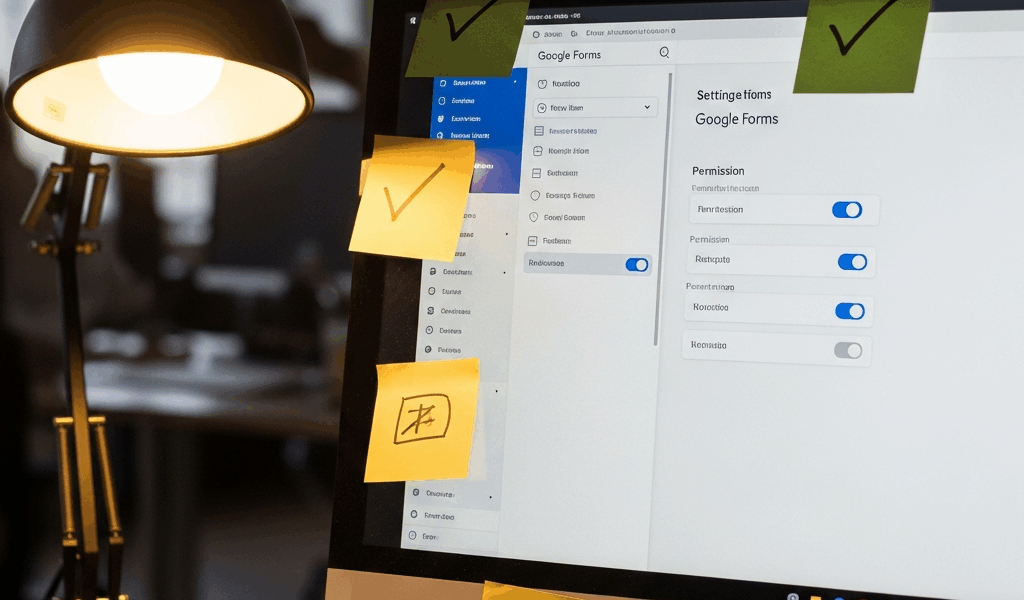
Want to verify your form status without clicking anything? Go to Form settings (the gear icon, top right). Scroll down to the bottom and you’ll see a section called “Presentation” with an “Accepting responses” toggle. That’s the definitive source of truth. If it’s off there, responses aren’t being collected, period.
Fix Email Notification Settings
A lot of people think Google Forms emails you automatically whenever someone submits. It doesn’t. Default state is silence.
To turn on email notifications, click the Responses tab at the top of your form. Once you’re there, look for the three-dot menu icon (⋮) in the upper right corner. Click it. You should see an option that says “Get email notifications” — it looks like a bell icon in some Google Forms versions. Click that to toggle it on.
Once notifications are on, Google will email you (and any collaborators with edit access) every time someone submits. Usually arrives within 2–3 minutes of submission.
But here’s the catch — you might turn on notifications and still never see the emails. Why? Two specific reasons.
First, Gmail filters are eating them. Google Forms notification emails sometimes get caught by spam filters or rules you’ve set up. If you think you turned on notifications but no emails are arriving, search your entire Gmail account (including Spam and All Mail) for emails from “[email protected]” or “Google Forms.” You might find them sitting somewhere unexpected. Move them back to your inbox and create a filter so they don’t get misdirected again.
Second, you might not have edit access to the form. If someone else created the form and shared it with you as a Viewer or Commenter, you won’t receive notification emails even if notifications are enabled. Only Editors get those emails. We’ll cover permission fixes in the next section.
Verify Your Connected Sheet Has Space
This one catches almost everyone at least once. Google Sheets has a hard limit — 2 million cells per sheet. Once you hit that limit, new responses stop appearing in your sheet. The form itself will continue to collect responses (you can see them in the Responses tab), but they won’t sync to your sheet.
Here’s how to check: open the Google Sheet connected to your form. Click on the sheet name at the bottom (where it says something like “Form Responses 1”). Then go to Sheet > Protected sheets and ranges to see if the sheet is locked for some reason. But more importantly, look at the response count. If you’re using a form that’s been running for months with thousands of responses, you might be approaching or past the cell limit.
Count the columns in your sheet — probably around 10–20 if it’s a standard form — and multiply by the number of rows. If that number is creeping toward 2 million, that’s your problem.
Solution: create a new sheet and reconnect your form to it. Go back to your form’s Responses tab > three-dot menu > “Select response destination” and choose a new sheet. Your old sheet stays intact with all the historical data, and new responses go to the fresh sheet.
I actually miscounted rows on a contact form last year and didn’t realize we’d hit the limit until someone pointed out responses were appearing in Forms but not in our database pull. We had 1.8 million cells already filled. Should’ve been archiving old responses quarterly.
Confirm Collaborators Have Edit Access
Multiple people managing your form? Permission levels matter a lot. Here’s how Google Forms access works:
Owner or Editor: Can see all responses, edit the form, get notification emails, change settings.
Commenter: Can view and comment on responses but can’t edit the form or see the connected sheet.
Viewer: Can only see the form as respondents would see it. No access to responses or settings.
If someone on your team says they can’t see responses, check their permission level. Click the Share button (top right) and look at what access level they have. If they’re a Commenter or Viewer, bump them to Editor.
But there’s a secondary permission issue — even if they’re an Editor on the form, they might not be an Editor on the connected Google Sheet. The form and the sheet have separate permission controls. If someone’s trying to view responses but doesn’t have edit access to the sheet itself, they’ll hit a permissions wall when the system tries to sync data.
Check the sheet permissions separately: open the sheet, click Share, and confirm everyone who needs to see responses has at least Viewer access to the sheet — Editor access is better.
When Google Is the Problem
Sometimes your form is fine and Google’s infrastructure is slow or temporarily broken.
Response sync usually takes 1–5 minutes. You submitted a test response 30 seconds ago and it’s not showing up yet? Wait a bit. That’s normal lag time.
If it’s been more than 15 minutes and nothing’s appearing, check the Google Workspace Status Dashboard. Google posts real-time updates about outages and degraded services there. Forms outages are rare but they happen. If Google is having issues, you can’t fix it — you just have to wait.
One other scenario: if your form has thousands of responses and you’re checking the Responses tab in your browser, the page itself might just be slow to load. Try refreshing. If you’re checking via the connected sheet, make sure the sheet isn’t overloaded with formatting or formulas that slow it down.
We ran into a situation where a survey form seemed to stop accepting responses, but it was actually just that the connected sheet had so many conditional formatting rules that it was timing out when trying to add new rows. Deleting unnecessary formatting fixed it.
Run through this checklist the next time responses vanish. One of these five things is almost always the answer.



Stay in the loop
Get the latest web sme updates delivered to your inbox.